
App Overview
On this page you can get a quick overview of the various parts of the app window, and understand what it does.
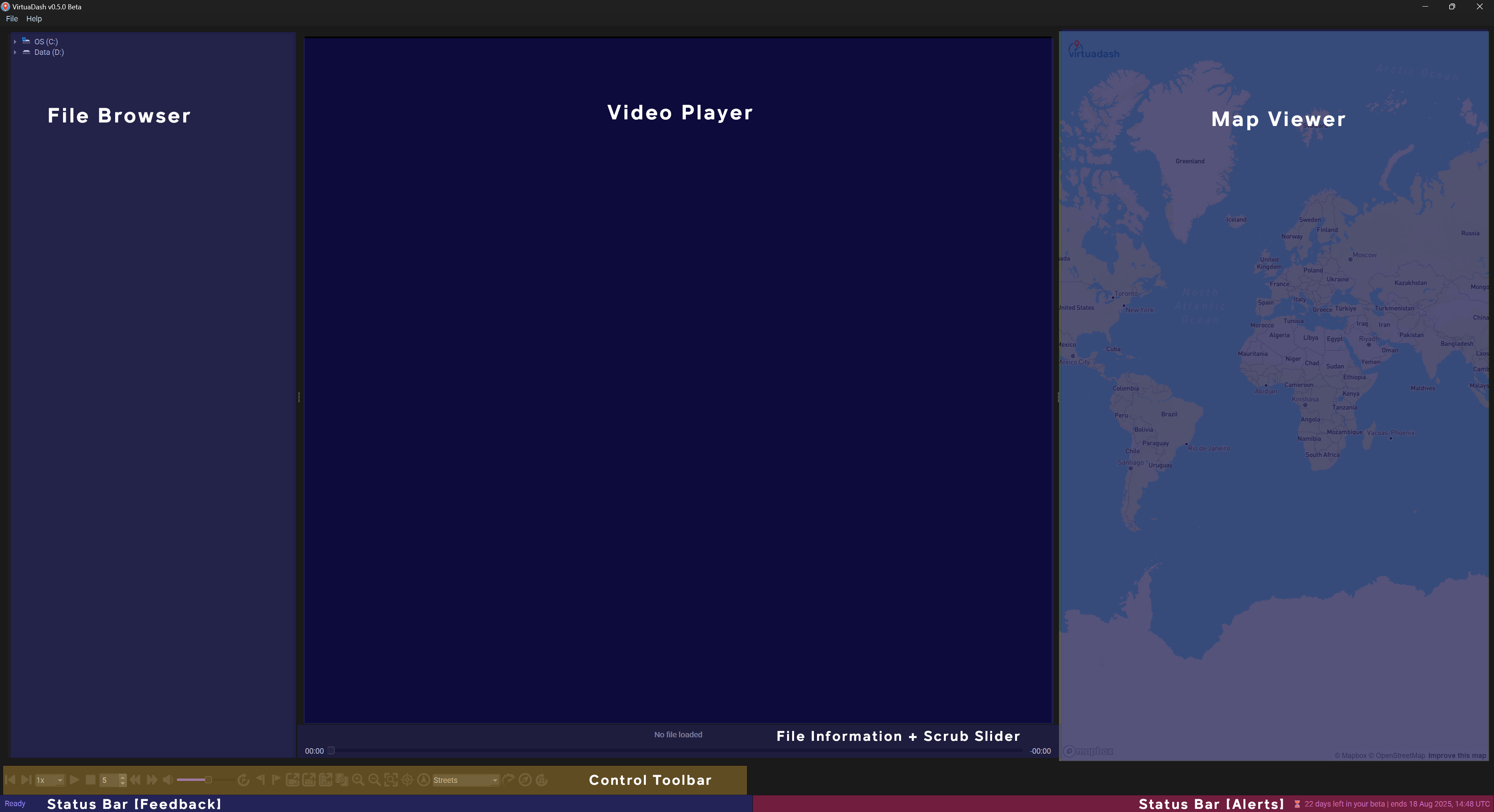
File Browser
Located on the left side, this panel lets you navigate folders, and open video files. You can also right-click to navigate to the file/folder in windows explorer.
Video Player
The central region where your dashcam footage is played.
Scrub Slider + File Info
Located directly under the video player, this is where you can see details of the current file being played, and a draggable seek bar to scrub through the video.
Control Toolbar
Located below the file info section is the Control Toolbar - This is where you find all the controls to work with your video files.
Map Viewer
On the right of the screen, this displays your GPS track in sync with the video. You can toggle views, zoom, and rotate the camera.
Status Bar (Feedback)
This is where VirtuaDash talks to you and keeps you informed about what's happening! You can double-click this section to open up a window which lists a history of operations done.
Status Bar (Alerts)
Alerts from VirtuaDash will be presented here (e.g., trial expiring, new update available). Double-click this section to open up a window which will provide additional details, if available. This new window also gives you an option to dismiss the alert.